Best Japanese Camera Translator Apps

A Japanese menu can go from confusing to clear in seconds when your phone reads it through the camera. But the best app depends on what you’re scanning, since manga pages, menus, signs, and group chats need different tools. Here are the strongest picks, with an honest look at offline limits and OCR gaps.
1. MangaGloss
MangaGloss is a free AI-powered manga translation and editing tool for raw comic pages. It fits translation teams, indie creators, scanlation groups, and language learners who need more than a quick word lookup.
You can test this yourself with the MangaGloss online manga translator: upload a page, then fix any line in the editor.
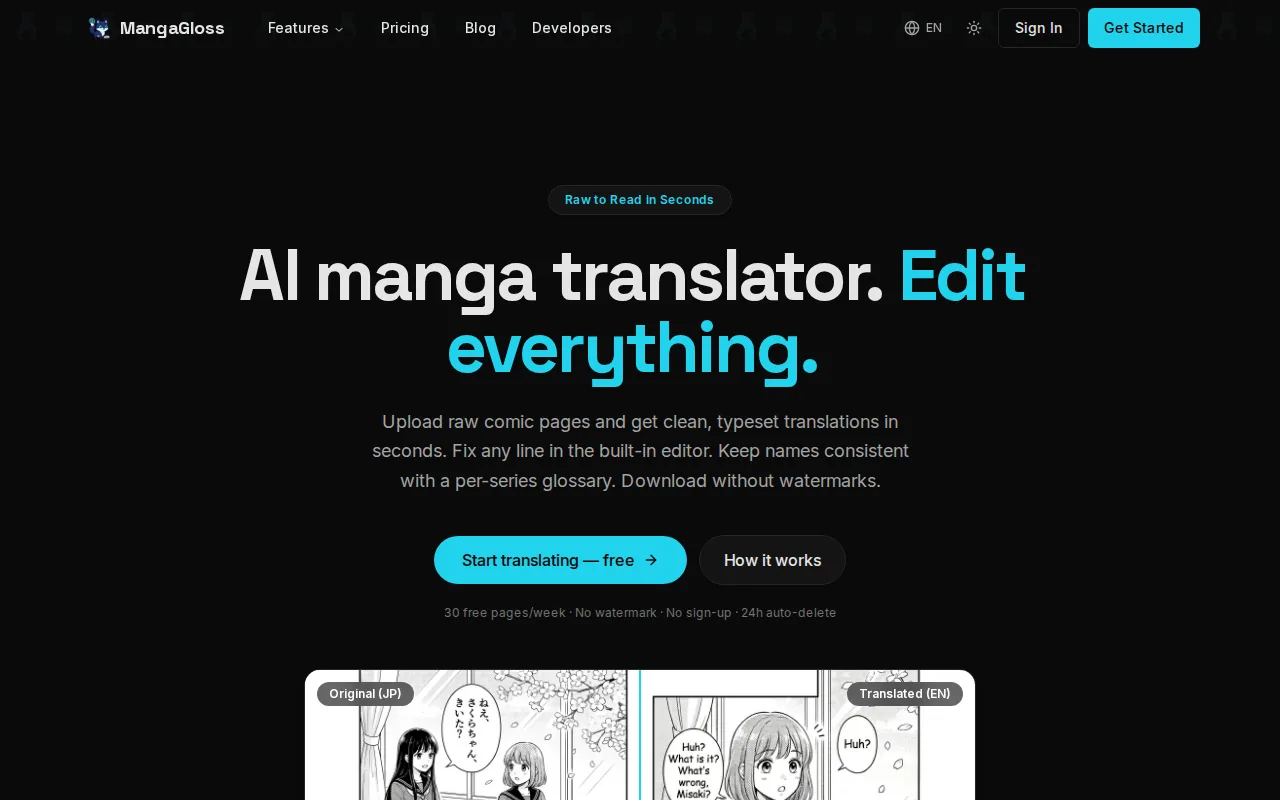
Unlike a travel app that places a short translation over a photo, MangaGloss handles the full comic page. It runs OCR on speech bubbles, narration boxes, and sound effects. Then it translates the text, removes the Japanese with inpainting, and typesets the new wording onto the page.
That workflow matters when you scan a manga page with vertical text, curved bubbles, or several text regions. A basic camera translator may identify words but leave you with a cluttered image. MangaGloss is built for a finished page that you can review and edit.
You can upload raw pages and fix names, jokes, line breaks, or tone in the editor. This makes it useful for a team handoff, since the first pass does not need to be the final pass. The Japanese manga translator from MangaGloss is the better fit when your source is a comic page rather than a shop sign.
The caveat is simple. MangaGloss is purpose-built for manga and comic translation, not a live conversation with a waiter. For a menu or train sign, a travel app will be quicker.
2. Google Translate, Best all-purpose camera translator
Google Translate is the easiest starting point for a Japanese camera translator. It suits travelers, language learners, and gamers who need a fast answer from a sign, package, menu, or screen.
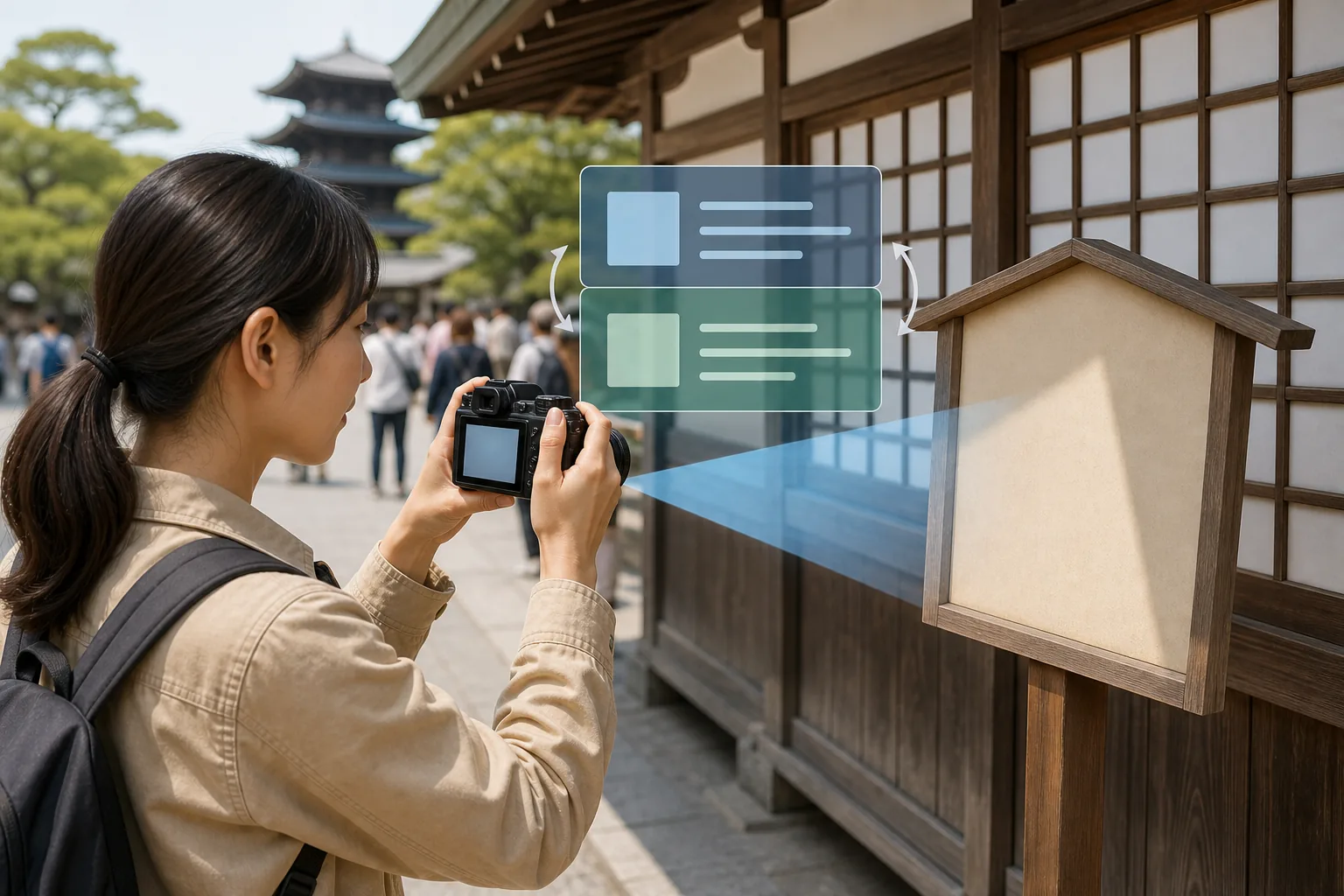
To use the camera mode, install the app and open it. Choose Japanese as the source language, then select English or your target language. Tap the camera icon, allow camera access, and point your phone at the text.
Keep the phone still while the app focuses. You can translate text live on screen, or take a photo and select the words you need. If the Japanese is already saved as an image, open the image from your gallery instead of taking another photo.
Google Lens follows a similar path. Open Lens through the Google app, choose the text mode, take a picture, and select Translate. The result can also be read aloud in some flows, which helps when you’re tired or trying to hear a new word.
There are useful fallbacks. Yandex Translator can open an image file for OCR, while i2OCR and EasyScreenOCR follow a similar upload-and-extract pattern. These are handy when you can’t install an app, though a web page is less useful when your connection is weak.
Google Translate is strong with short, clear phrases. It can struggle when a sentence depends on context, an idiom has no direct English match, or the Japanese subject is left unstated. Longer text can produce strange wording, so treat the result as a clue when the decision involves money, health, or safety.
For better scans, move closer without cutting off the line. Avoid glare. Use a steady hand and good light. Vertical Japanese text may work, but a busy layout can cause the app to read columns in the wrong order.
3. Papago, Best for Japanese menus and handwriting
Papago is a strong Japanese camera translator for food stops and handwritten notes. It suits travelers who want image translation plus a way to enter characters by drawing them with a finger.
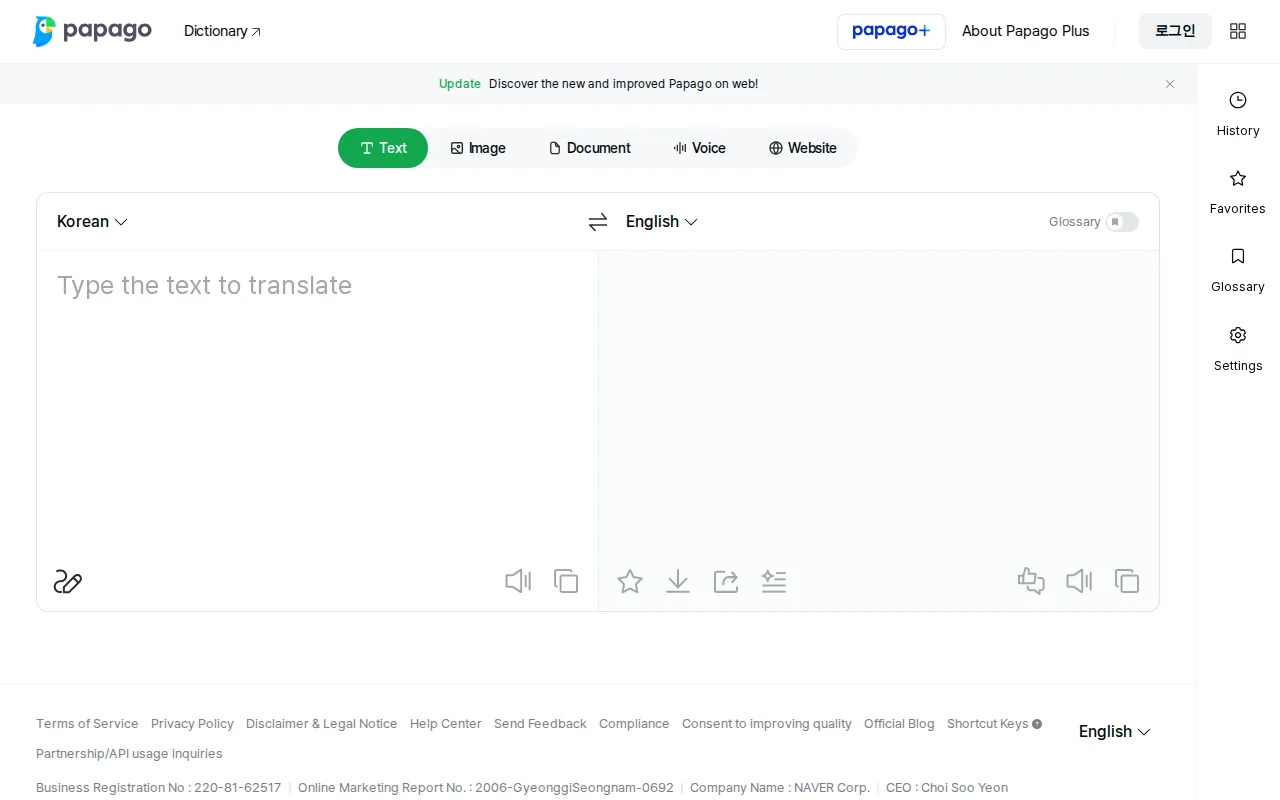
Papago offers offline translation for Japanese-English and handwriting recognition. Its handwriting mode can help you enter a word after writing it on screen, which is useful when you cannot type a Japanese character. For travelers, that gives the app a practical role alongside camera translation.
That handwriting option helps when a menu has a character you can’t type. It can also help with a note, sign, or label that the camera can’t read well. For a traveler, the workflow is clear: take a photo first, then try handwriting for one hard character.
Papago is especially suited to menus in Japan. Its Japanese-English support and handwriting recognition make it useful when a traveler needs to work through unfamiliar food terms or individual characters in one place.
Papago offers offline Japanese-English translation, so download the language data before leaving your hotel and test it on a sample menu or label.
Privacy deserves a quick check too. Camera translation needs access to images or the camera, and app data practices can vary by region and use. Avoid scanning passports, payment details, or private documents unless you understand how the app handles that data.
4. Microsoft Translator, Best for group travel
Microsoft Translator works well when a Japanese camera translator is only one part of the problem. It suits group trips, short talks with locals, and shared conversations where several people need to follow along.
It supports downloaded language packs for text translation without an internet connection. That gives you a useful backup for street signs and menus after you lose service.
Its standout feature is live translated conversation. One person can host a conversation, while others join through the mobile app or a web browser. For a group, that is easier than passing one phone around after every sentence.
You can also speak short phrases into one device for one-on-one translation.
The trade-off is focus. Microsoft Translator makes more sense for people and shared dialogue than for detailed manga layouts or a long ingredient panel. Offline packs can help, but you should test the Japanese pack before your trip. A result that is good enough for “Which platform?” may not be good enough for an allergy question.
For group travel, set up the conversation before you reach a crowded station. Everyone can join while the connection is stable, then you can use the camera and phrasebook when the group splits up.
5. Waygo, Best fully offline option
Waygo is the clearest pick when your Japanese camera translator must work without a data plan. It is aimed at remote areas where you can’t count on Wi-Fi or mobile service.
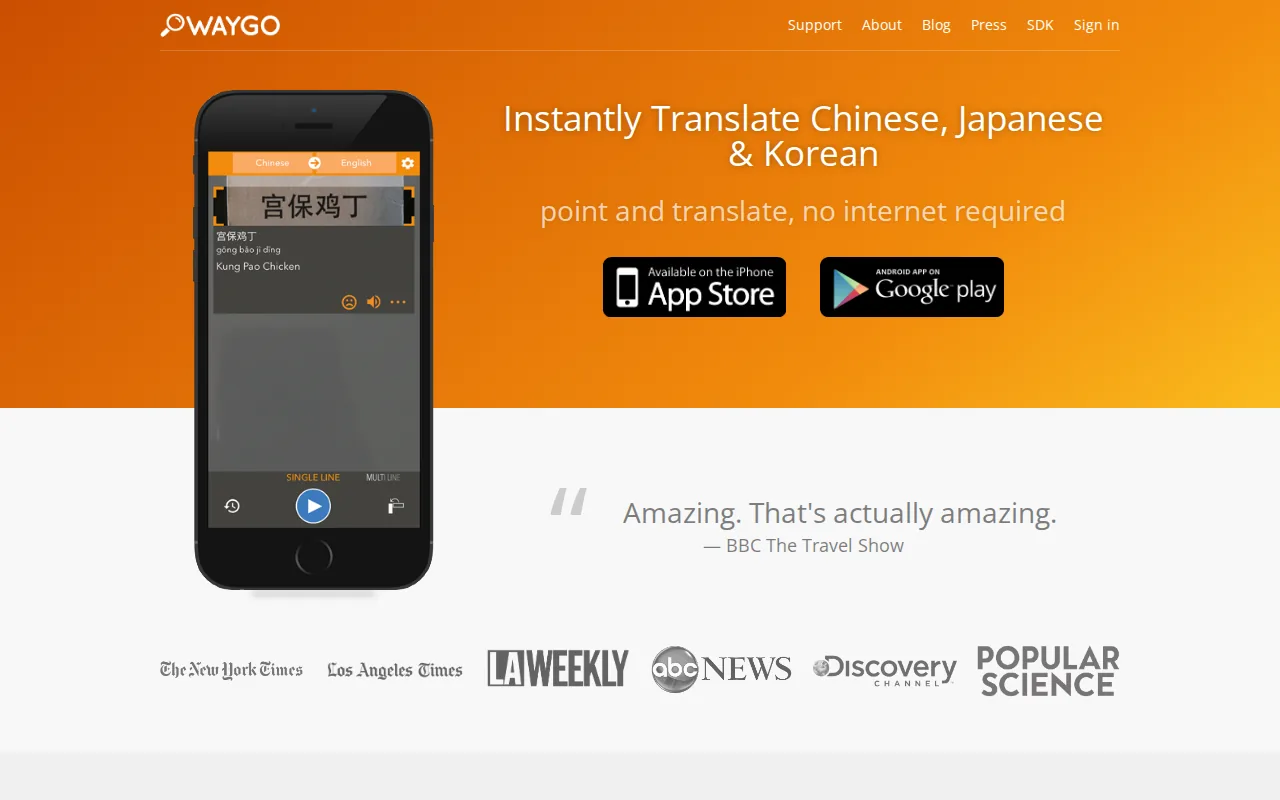
Waygo is fully offline, which makes it different from apps that support offline packs but warn that quality may drop. That distinction matters on a mountain road, inside a basement shop, or during a train ride with poor service.
Waygo is best for quick visual checks. Point it at a sign or label, then use the result to understand the basic meaning. It can be a useful backup even if your main app is Google Translate or Papago.
Its limitation is scope. Fully offline translation is convenient, but it does not remove the hard parts of Japanese. Vertical writing, slang, names, idioms, and dense layouts can still confuse an OCR system. Check the original before trusting a key word.
Japanese combines kanji with hiragana and katakana, and text may run vertically or horizontally. Japanese language overview. In practice, that means a clean photo still matters. Crop out nearby clutter, hold the phone parallel to the page, and check the original before trusting a key word.
| Situation | Best fit | What to watch |
|---|---|---|
| Raw manga page | MangaGloss | Review names, jokes, and bubble breaks |
| Short sign or package | Google Translate | Long phrases may lose context |
| Menu or handwriting | Papago | Test offline results before travel |
| Shared conversation | Microsoft Translator | Set up the group session first |
| No connection | Waygo | Expect basic meaning, not perfect nuance |
Waygo is fully offline, so pick it when connection failure is your main risk, not when you need the richest editing workflow.
FAQ
What is the best Japanese camera translator?
The best Japanese camera translator depends on the text. MangaGloss is the strongest fit for raw manga pages because it combines OCR with translation, inpainting, typesetting, and editing. Google Translate is better for quick signs. Papago suits menus and handwriting, while Waygo is the safer choice when you have no connection.
Can I translate Japanese text with my phone camera?
Yes, you can translate Japanese text with a phone camera by opening a camera translation mode and pointing it at the page. Google Translate and Google Lens can read short signs, menus, and labels. Keep the image sharp, avoid glare, and check the original when the wording affects safety or money.
Which Japanese translator works offline?
Waygo is the fully offline option in this shortlist. Google Translate, Papago, and Microsoft Translator also have offline functions or language packs, but offline quality may be lower. Download the needed Japanese data before you leave and test it on the kind of text you’ll face.
Can a camera translator read vertical Japanese?
A camera translator may read vertical Japanese, but results vary with layout and image quality. MangaGloss is designed for comic pages that can contain vertical text and several text regions. For travel apps, crop one column at a time when possible, then compare the translation with the original characters.
Why do Japanese camera translations sound strange?
Japanese camera translations can sound strange because meaning often depends on context, omitted subjects, idioms, and sentence structure. Short words usually work better than long reviews or dense paragraphs. If the result seems alarming or absurd, retake the photo, translate a smaller section, and ask a fluent speaker before acting on it.
For most travelers, start with Google Translate and keep Waygo as an offline backup. If you’re translating manga rather than menus, MangaGloss is designed for comic pages and includes an editor for reviewing the translation.