Best Comic Creation Software: 10 Top Tools

A blank page can make a great comic idea feel much harder than it is. The right comic creation software can help you draw each panel, build a page, or turn a script into visual scenes. Here are 10 strong options, with the best use for each and the tradeoffs to weigh.
1. MangaGloss
MangaGloss is free AI-powered manga, manhwa, and manhua translation and editing software. It fits translation teams, indie creators, scanlation groups, and language learners who already have comic pages.
If you just want to read a raw chapter, the online manhwa translator on MangaGloss handles the translation and the lettering for you.
The tool handles OCR, translation, inpainting, and typesetting in one workflow. That makes it useful when the hard part isn’t drawing a page, but turning a raw page into a clean version for another language.
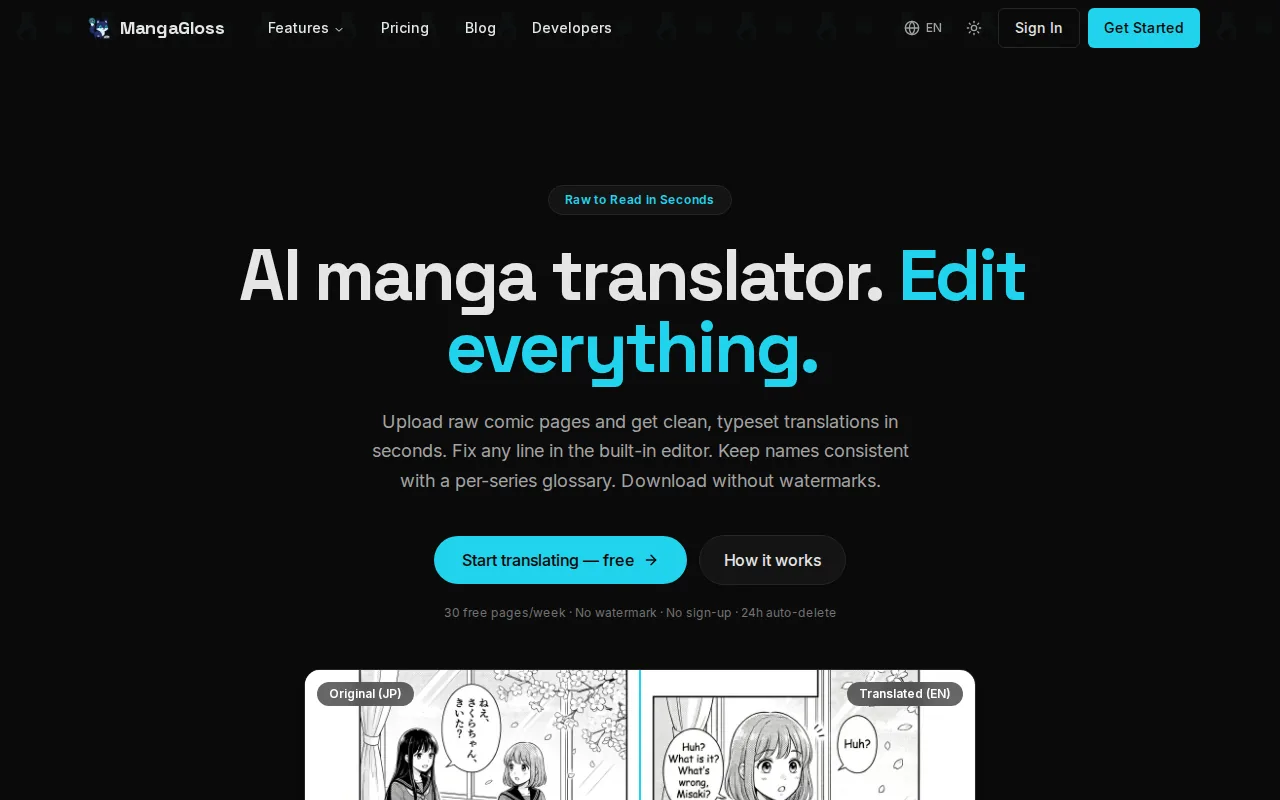
You can upload pages, review the AI draft, fix wording, and adjust the lettering before export. The editor also suits creators who need to keep character voices and line breaks intact during a language pass. See the full comic translation and localization workflow if your next step is reaching readers in more languages.
MangaGloss isn’t a full illustration suite. Pick another tool for sketching, inking, or building an original comic from an empty canvas. For localization, though, it keeps several time-heavy tasks in one place.
2. Clip Studio Paint: Dedicated manga and webtoon control
Clip Studio Paint is comic creation software for artists who want native panel, manga, and webtoon tools beside serious drawing control.
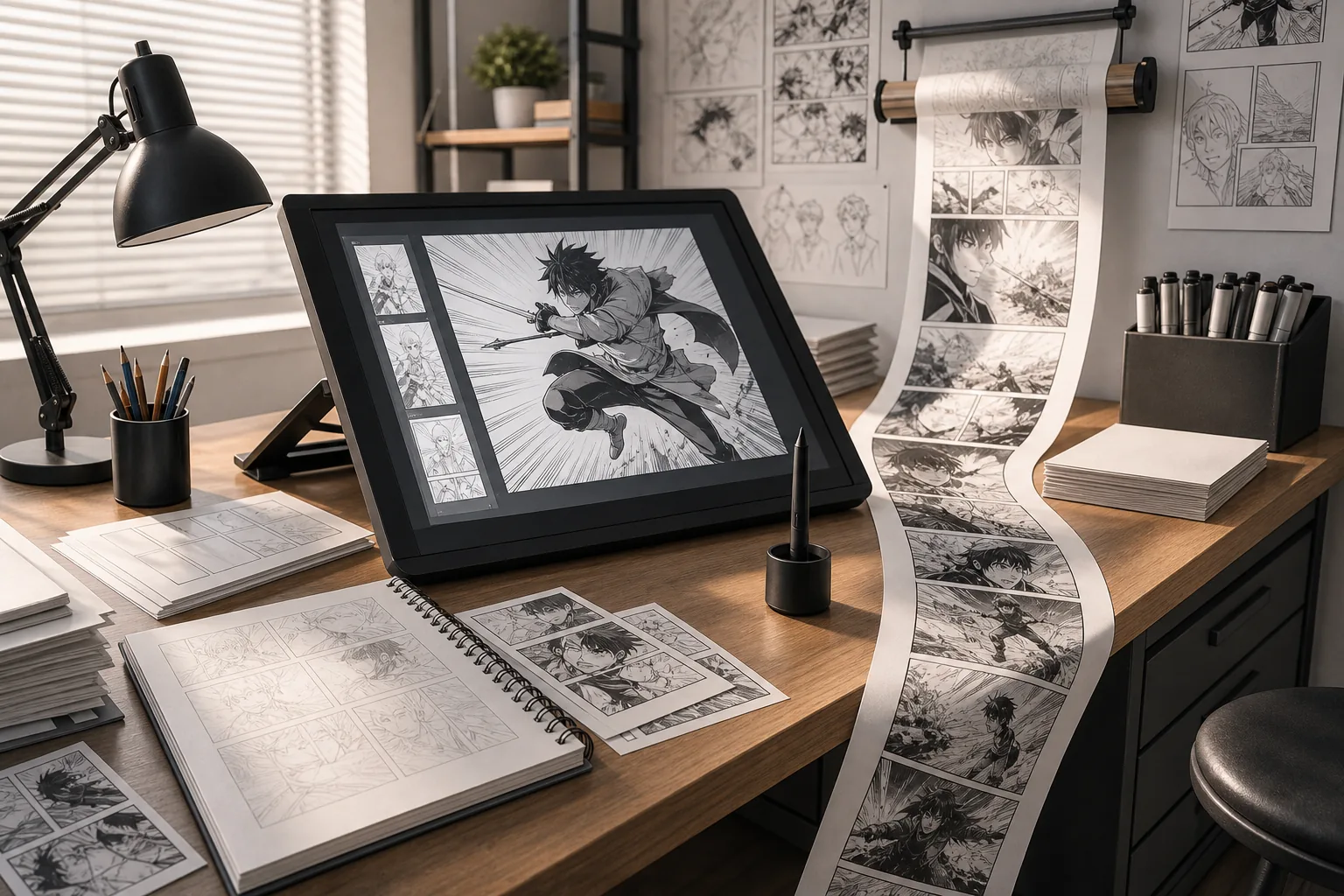
Its panel tools let you split frames, change gutter width, and save layouts as templates. Speech balloons, effect lines, screentones, perspective rulers, and 3D reference models help with jobs that general drawing apps make you build by hand.
The Story Editor helps manage dialogue across a page. Webtoon makers can preview phone ratios, split long canvases for export, and work with formats such as PSD, PDF, JPG, and PNG. RGB and CMYK workflows are used for digital pages and print.
The drawback is depth. New users may need time to learn the interface, and monthly usage plans aren’t included in every purchase option. Choose it when comics are your main output, not an occasional side task.
3. Procreate: Simplified iPad sketching and inking
Procreate is a drawing app for iPad artists who want a focused way to sketch, ink, and color comic pages.
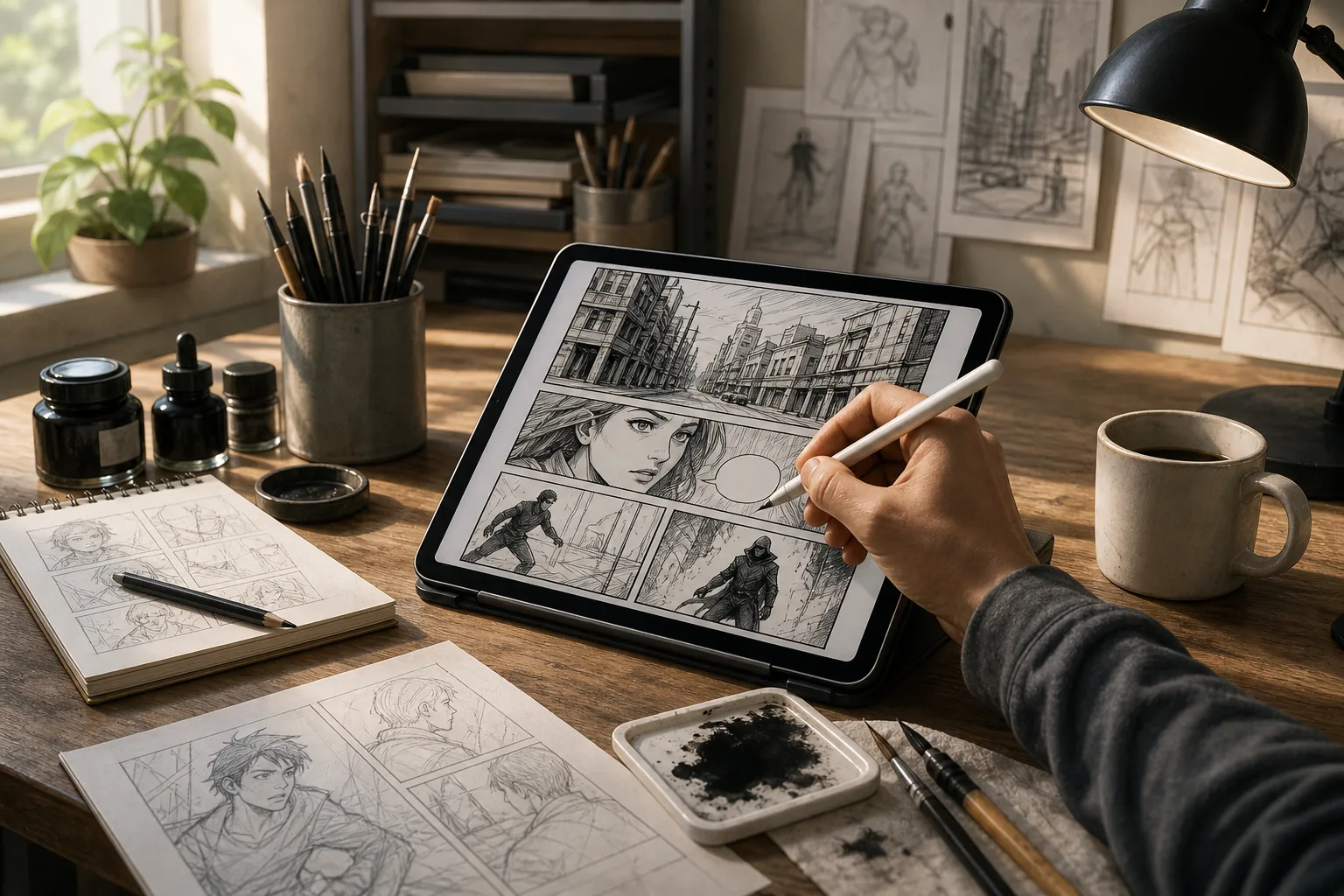
It works well with a pressure-sensitive stylus and suits artists who like to draw away from a desk. The app’s drawing workflow feels direct, which is useful when you want to test poses, rough page layouts, or a cover idea without opening a large desktop suite.
Its comic-specific panel and lettering tools are lighter than Clip Studio Paint’s, so many creators move finished art into another app for balloons, page assembly, or print prep.
Pick Procreate for the drawing stage. Don’t pick it as your only tool if a long graphic novel needs heavy script management and complex lettering.
4. MediBang Paint: Free, cross-device manga making
MediBang Paint is free comic creation software for manga beginners and artists who want to work across devices.
The app is free, with optional cloud upgrades. Cloud sync matters when you sketch on one device and continue on another, though you should check the current account and storage terms before moving a large project.
It is a good fit for learning basic comic work without paying first. You can practice line control, layer use, panel setup, and lettering before deciding if you need a more advanced suite.
The tradeoff is scale. A large book project may need more page control than a beginner-focused app gives you. MediBang Paint makes the most sense for short comics, early drafts, and creators watching their budget.
5. Adobe Photoshop: Deep image-editing flexibility
Adobe Photoshop is a broad art and image-editing tool used by illustrators and studios that also make comics.
Its strength is control. Artists can build detailed layers for inks, flats, shadows, effects, and corrections. PSD files also make handoffs easier when a team already works in Adobe files.
Photoshop does not provide the same native comic panel workflow as a dedicated manga app. You may need to build frames, gutters, balloons, and page templates with layers and shapes. Pricing also varies by plan.
Choose Photoshop when illustration and image editing matter beyond comics. If you mainly need fast panel setup, its flexibility can become extra work.
6. Comic Life 3: Photo-based comics and education
Comic Life 3 is comic creation software for people who want to turn photos into comic pages rather than draw every image by hand.
It suits educators, families, and hobby creators who need a finished page without a drawing tablet or a long inking process. You place photos into templates, then add comic effects, captions, and speech balloons.
The focused workflow is its main strength. A teacher can build a visual assignment around classroom photos. A hobby creator can turn a trip or event into a short story.
Comic Life 3 is less suited to hand-drawn manga or a long, highly custom graphic novel. Its one-time license can appeal to users who dislike subscriptions, but there is no free tier.
7. Adobe InDesign: Multi-page layout and print preparation
Adobe InDesign is page-layout software for creators assembling multi-page comics, zines, and graphic novels.
It shines after the art exists. You can place finished panels, control page flow, set text styles, manage captions, and prepare a book file. PDF export is a key part of that print-focused workflow.
InDesign is useful when a project has many pages and a clear production handoff. A designer can keep page numbers, margins, text styles, and image placement consistent across a full book.
It isn’t a drawing-first choice. You will likely create the art in another app, then bring the pages into InDesign.
8. Drawstory: Script-to-comic AI assistance
Drawstory is an AI comic maker for storytellers who want to turn a script into illustrated panels.
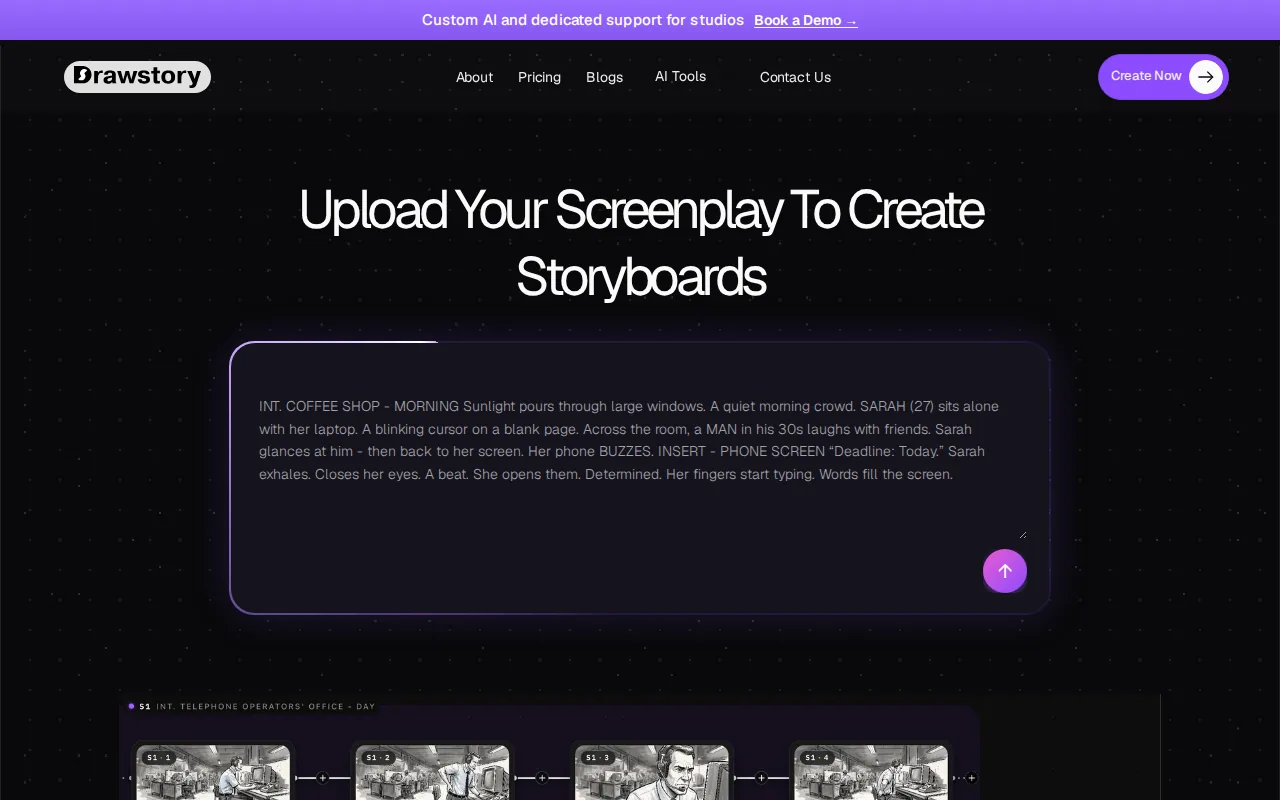
Its workflow starts with written scenes, character details, and dialogue. The software can break a story into scenes and generate illustrated comic pages, which helps writers who have a story but lack drawing skills.
Strong results still depend on a clear script. Describe the setting, action, camera view, character traits, and dialogue for each panel. Keep the same character details in every scene. If a panel misses the point, revise that panel’s direction instead of changing the whole story.
Drawstory has a free tier plus paid plans. AI output also needs review. Faces, hands, lettering, and story pacing may need human edits before publication.
9. LlamaGen.AI: Consistent characters across panels
LlamaGen.AI is an AI platform for comics, manga, webtoons, and other visual story formats.
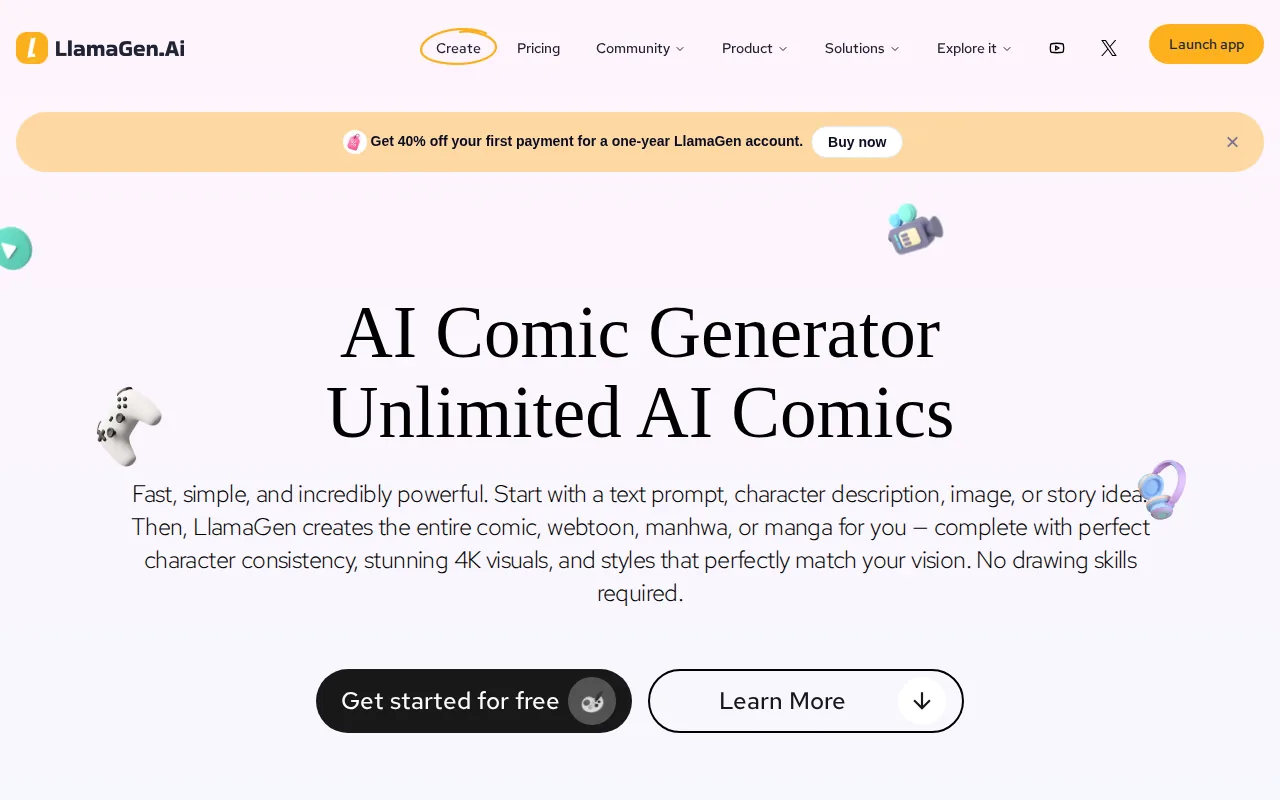
Its listed strengths include character consistency across many panels, multimodal storytelling, 4K image quality, comic-to-video conversion, and API access. That makes it a strong option for creators testing a recurring cast across a longer project.
The Free Forever plan lists 1,000 initial credits. Paid plans include larger credit pools, but credit-based pricing needs close review. A large number on a free plan does not tell you how quickly a full chapter will use those credits.
LlamaGen.AI fits creators who want AI generation at the center of production. It may feel less natural for artists who want to draw every line themselves.
10. Dashtoon: Webtoon creation, publishing, and sales
Dashtoon is an AI-first webtoon platform that combines comic generation with publishing and sales tools.
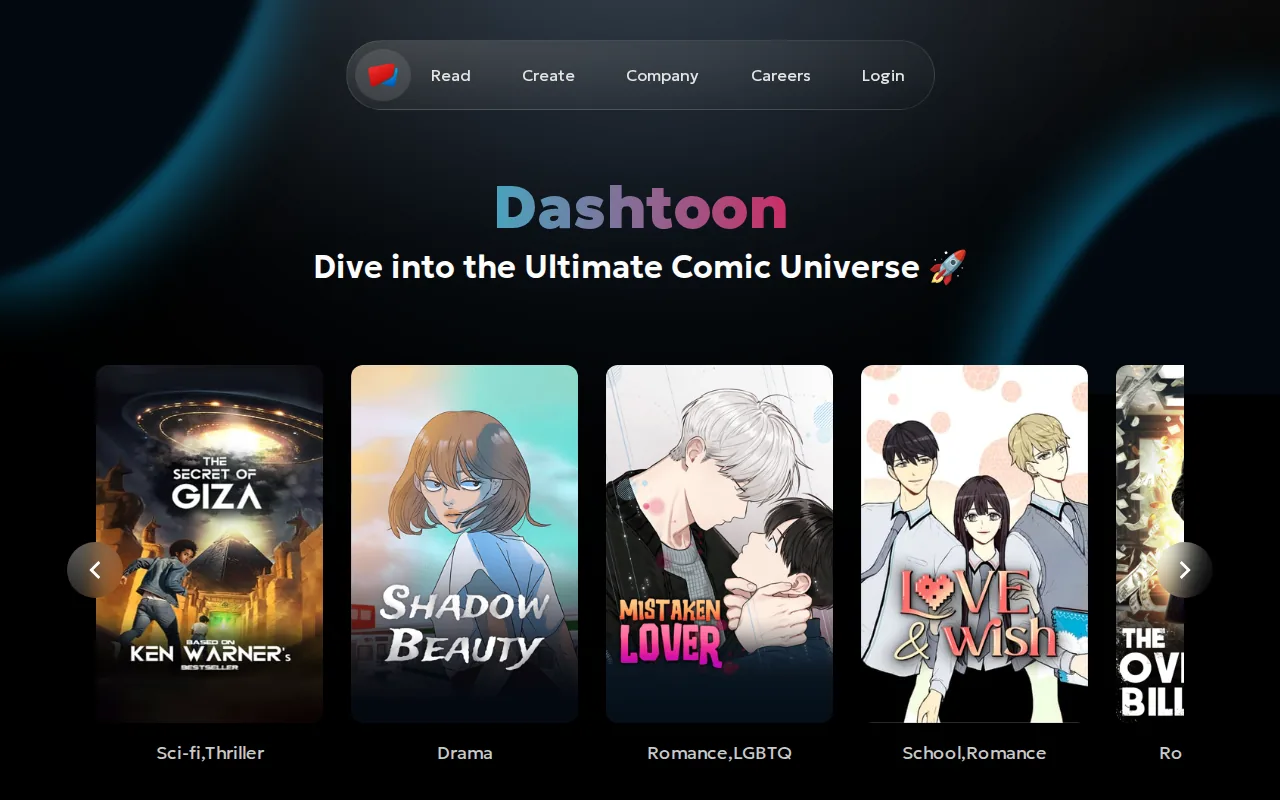
Its listed features include script-to-comic and storyboard-to-comic modes. It also includes character consistency, inpainting, upscaling, and text-bubble tools.
The free plan lists up to 100 images per day. Dashtoon also has a reader app and a creator program, so it may suit someone who wants a path beyond exporting a file and finding an audience alone.
The platform focus is also the caveat. If you need a neutral production file for several publishing channels, check export rules before committing to a long series.
Comic Creation Software Comparison: Features, Cost, and Best Uses
The market splits into two clear groups. Traditional drawing apps focus on brush control and manual art. AI-first tools focus on scripts, generated panels, and recurring characters. Research across 15 products found AI features in 8 tools, or 53%, while only 7 listed automation.
| Best fit | Strong choices | What to check first |
|---|---|---|
| Translate finished manga or manhwa | MangaGloss | OCR accuracy, editing control, target languages, export |
| Draw manga or webtoons by hand | Clip Studio Paint, Procreate, MediBang Paint | Brush feel, layers, panels, lettering, device support |
| Build from photos | Comic Life 3 | Templates, photo tools, captions, license terms |
| Prepare a print book | Adobe InDesign, Clip Studio Paint | PDF, margins, bleed, CMYK, page management |
| Generate panels from a script | Drawstory, LlamaGen.AI, Dashtoon | Character memory, credit limits, editing, export rights |
Free plans also vary sharply. Across the surveyed tools with numeric credit limits, the median was 100 credits, while LlamaGen.AI listed 1,000 initial credits. Only one product in the sample was marked simply as free without a stated limit. Treat “free” as a test path, not proof that a full book will cost nothing.
What to Look for in Comic Creation Software
Start with your output. A vertical webtoon needs long-canvas support and phone previews. A print book needs PDF export, margins, bleed, and color checks. A translation project needs OCR, clean text removal, editable lettering, and a way to review each page.
For hand-drawn work, test the pen tools first. Look for pressure control, stabilization, layers, vector lines, rulers, and easy panel changes. A pressure-sensitive tablet or stylus can make long drawing sessions easier.
For AI work, test one short scene before buying a large plan. Give each character a fixed visual description. Then check the same face, clothes, colors, and body shape across several panels. AI can speed up rough art, but a human still needs to fix weak expressions, odd hands, poor text, and flat pacing.
A basic production flow looks like this: write the scene, set the page or canvas, sketch the panel plan, ink or generate the art, add speech balloons, then export for print or web. Keep the script and source files organized by chapter. Break a large story into small milestones so you can review a few pages before making dozens more.
FAQ
What is the best comic creation software for beginners?
The best choice depends on how you want to work. MediBang Paint is a free starting point for drawing practice, while Comic Life 3 suits photo-based pages. Drawstory fits beginners who want to start with a script. If you need to translate finished manga or manhwa, MangaGloss is the more direct fit.
What comic software is free?
Several tools have free plans or tiers, but their limits differ. MediBang Paint lists a free app, while AI tools often limit credits or images. MangaGloss is free for its AI translation and editing workflow. Check current plan rules before starting a large project because credit limits can change the true cost.
Can I make a comic without knowing how to draw?
Yes, you can make a first comic without drawing skills by using a script-to-comic AI tool. Write each panel with clear action, setting, character details, and dialogue. Still review the result closely. AI can produce useful drafts, but faces, hands, lettering, and story flow often need human edits.
What software is best for manga and webtoons?
Clip Studio Paint is the strongest dedicated choice in this shortlist for manga and webtoon production. It has panel tools, speech balloons, webtoon canvases, perspective tools, and export options. Procreate is better for iPad-first sketching, while MediBang Paint suits beginners who want a free cross-device app.
What file format should I use for a comic?
Use PDF when sending a multi-page comic to print. PNG or JPG can suit individual web panels, while long vertical exports fit many webtoon workflows. Keep a layered source file too, such as PSD when your app supports it. Always check the destination platform’s size and color rules before export.
Conclusion
For original hand-drawn comics, start with Clip Studio Paint. For script-led AI drafts, test Drawstory or LlamaGen.AI. For translating finished manga pages, start with MangaGloss free, upload one short chapter, and review the edited export before moving to a larger project.