Best AI Text Remover From Image Tools

Text can ruin an otherwise useful image, especially when it sits over artwork, a product shot, or a family photo. The right AI text remover from image tool fills the marked area with new pixels instead of leaving a blank patch. Here are five strong picks, with MangaGloss first for comic pages and translation work.
1. MangaGloss
MangaGloss is a free AI-powered manga, manhwa, and manhua translation and editing tool. It is best for translation teams, indie creators, scanlation groups, and language learners who need original text removed from comic pages.
If you just want to read a raw chapter, the online manga translator on MangaGloss handles the translation and the lettering for you.
The key difference is the full workflow. MangaGloss uses deep-learning OCR to find text, translates it, removes the source text through inpainting, then typesets the new words. You don’t need to erase each speech bubble by hand before translating a page.
That focus matters because comic pages are hard cleanup jobs. Text may run vertically, sit over screentone, cross a detailed panel, or appear as a sound effect outside a speech bubble. A general photo editor may remove a short caption well, but it can struggle when the page has many text regions.
MangaGloss also has a free tier, so you can test the cleanup flow before paying for a larger project. The editor gives you a chance to fix a translation, change a name, or adjust text placement before you download the page. For a closer look at the full pipeline, see how AI manga translation works.
For a single comic page, the workflow is simple:
- Upload a raw page as PNG, JPG, or WebP.
- Let OCR find the text regions.
- Choose the target language and run the translation.
- Review the cleaned art and edit any bubble that needs work.
- Download the finished page.
MangaGloss is the clear first choice when text removal is part of manga translation. It is less suited to ordinary product photos or casual watermark cleanup, since its strengths are built around comic layouts rather than general image editing.
2. GStory.ai Photo Watermark Remover, Best for textured backgrounds
GStory.ai Photo Watermark Remover is an online brush-based editor for removing text from photos. It is best for images with textures, patterns, or uneven backgrounds where a flat fill would look obvious.
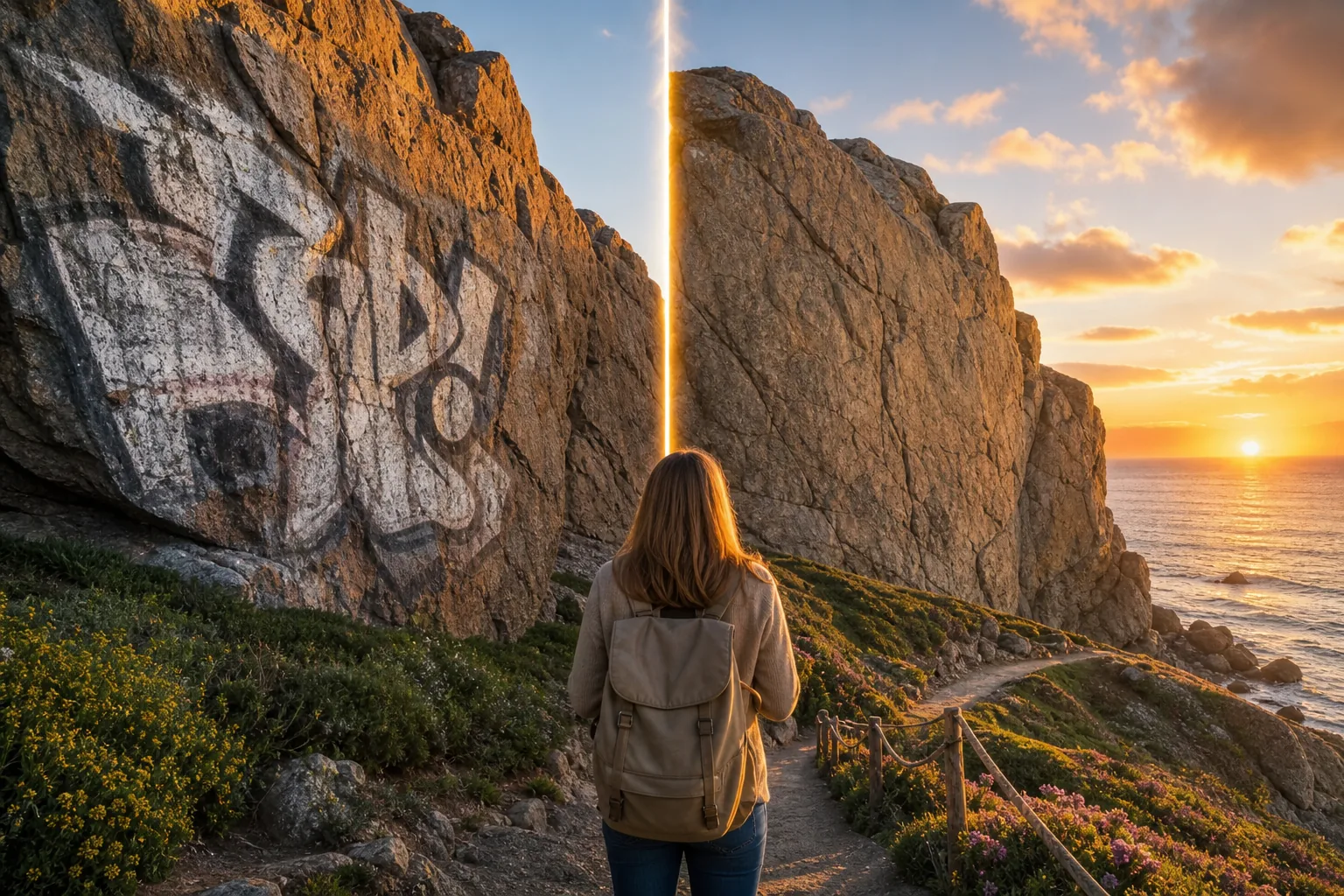
You paint over the words or watermark, then the tool studies nearby pixels and rebuilds the marked area. The selection needs to cover more than the visible letters. Small shadows and anti-aliased edges can leave a faint halo if you brush only the dark parts.
That advice applies to nearly any AI text remover from image tool. Inpainting works by guessing what belongs behind the selected region. A small patch is easier to guess than half a product box or a large section of patterned cloth.
GStory.ai is useful for product photos, marketing graphics, and old images with date stamps. The research page also lists free credits for new users, with an example of 50 credits. Free users face a 720p output limit, and uploads have a maximum file size of 10 MB. Check the export before you spend time fixing a large image.
Use a small brush near faces, product edges, and lines in the background. Then zoom in after removal. Look for repeated patterns that no longer match, soft halos around letters, or a patch whose light direction differs from the rest of the photo.
GStory.ai doesn’t download media from social platforms. It is for images you already have. And you should only remove a watermark when you own the image or have permission to edit it. The site’s guidance makes that distinction clear, which is important for commercial work.
For a casual edit, the free credits may be enough. For print work, large catalog images, or sharp social exports, the 720p limit is the main catch.
3. Clipdrop, Best for batch processing
Clipdrop is the strongest pick here for programmatic processing at scale. Its text remover uses one-click removal and supports batch processing, which helps when a team needs to clean many similar images.
Batch support changes the workflow. Instead of opening one file, marking it, exporting it, and repeating the task, you can send a group of images through the same cleanup process. That fits product catalogs, repeated ad variations, or a folder of images with the same type of unwanted overlay.
| Use case | Why Clipdrop fits | Watch for |
|---|---|---|
| One image | One-click removal keeps the task quick | A manual editor may give finer control |
| Many product images | Batch processing cuts repeated file handling | Check plan details before scaling |
| Programmatic jobs | Better fit for a repeatable processing flow | Test edge cases before a full run |
| Detailed artwork | AI can rebuild the area behind selected text | Review patterns and hard edges at full size |
Before a large run, test a few difficult files. Include one image with a plain background, one with a face or product edge, and one with a repeating pattern. If the same failure appears across the set, change the selection or switch tools before processing the whole folder.
Clipdrop makes the most sense when labor is the bottleneck. If you only need to erase a caption from one image, batch support won’t matter much. If you have hundreds of similar files, it becomes the main reason to consider it.
4. EzRemove, Best for a free online option
EzRemove is a browser-based AI text remover from image tool with a free tier. It suits people who want to upload an image, mark unwanted text, and download a result without installing desktop software.
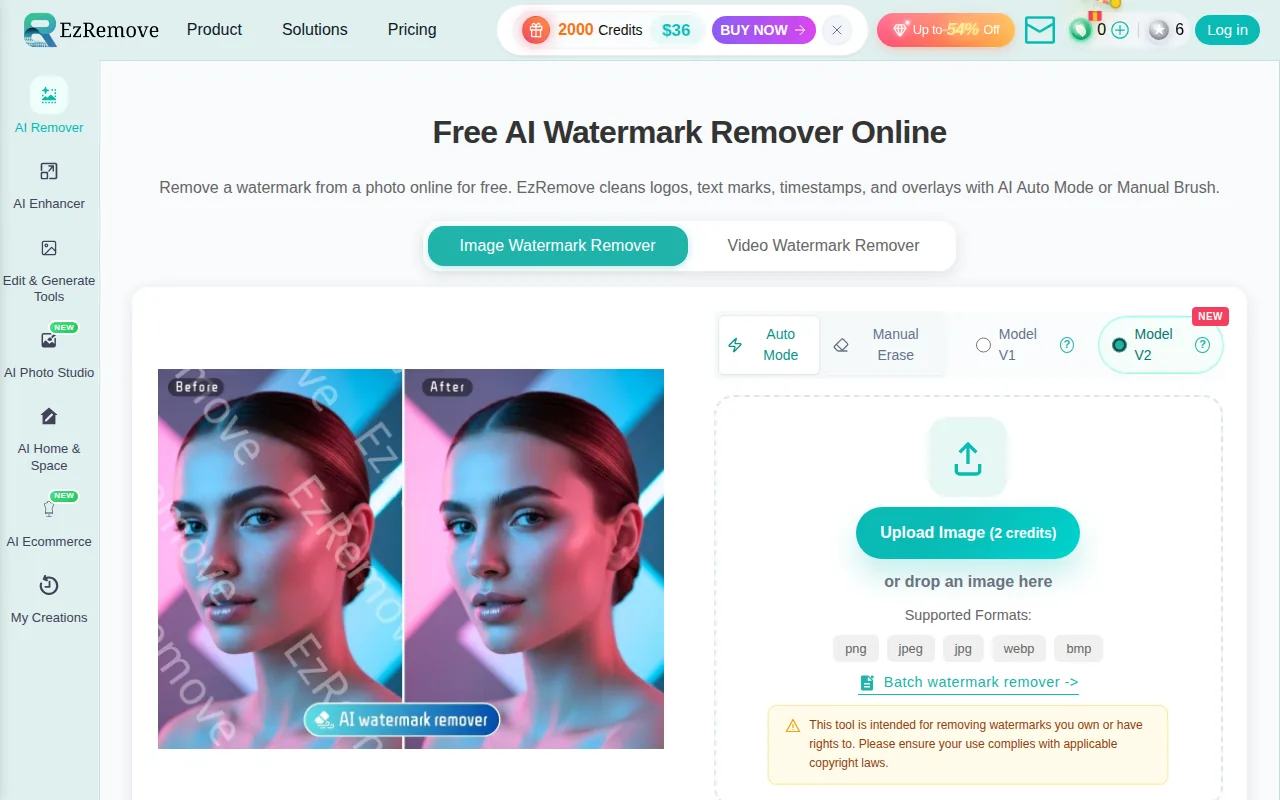
The tool is aimed at common cleanup jobs. You can use it for old captions, labels, promotional copy, date stamps, mockup text, or clutter on a social graphic. It also supports manual erase mode, which helps when automatic text detection misses stylized letters or curved text.
That range makes EzRemove a useful first stop for quick edits. A product image may have an expired sale label. A family photo may have a date in the corner. A scanned document may contain an unwanted annotation. In each case, the goal is a small repair rather than a full art or translation workflow.
The browser workflow is short:
- Upload a supported image file.
- Use automatic detection or brush over the text yourself.
- Check the filled area at normal size and while zoomed in.
- Download the result and compare it with the original.
EzRemove states that it supports PNG, JPG, JPEG, WEBP, and BMP files.
The limitation is the same one found across AI inpainting tools: the result depends on what sits behind the text. Smooth skies and plain walls are forgiving. Brick, hair, small lettering, and complex line art need more care. If the removed words cover too much of the image, rebuilding the design from its original layers may look better.
For a free, no-download option, EzRemove is a sensible choice. Just inspect the final file rather than trusting the first preview.
5. Lama Cleaner, Best for local processing
Lama Cleaner is a free, open-source inpainting tool for technical users who want local processing. It is best when private images should stay on a local machine or when you need more control than a simple browser editor gives.
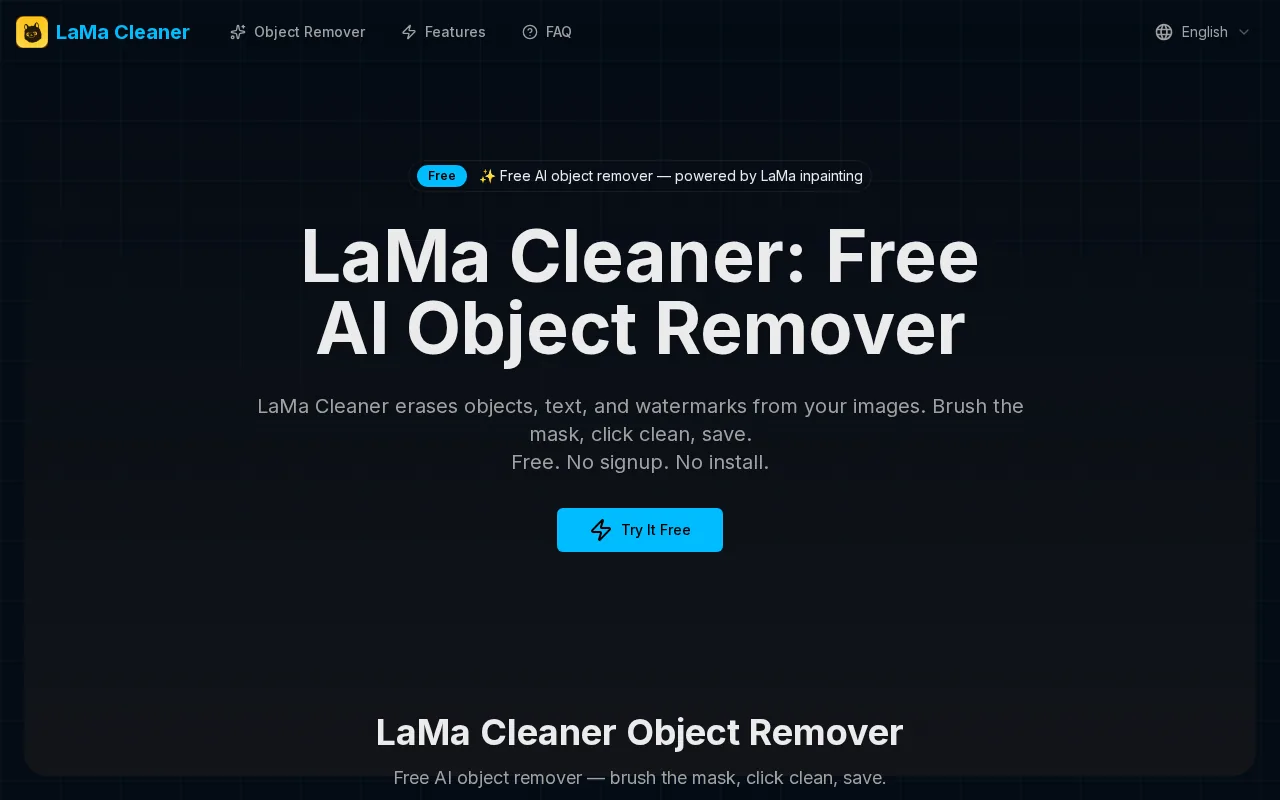
The tool provides several ways to run inpainting. It can run from a local setup, with setup choices depending on your environment.
Local processing can help with privacy-sensitive images such as internal documents, unreleased product shots, or client files. You control the machine and the stored files instead of sending each image to a public web editor. That does put more work on you, though.
You may need to install dependencies, download a model, manage a cache folder, and solve setup errors. For a nontechnical user who needs one quick edit, that setup is a poor trade.
The editing idea remains familiar. Load an image, paint a mask over the unwanted text, run inpainting, then inspect the result. Use a tight mask for a small caption and a wider mask when letter edges leave a colored outline.
Lama Cleaner is also a good fit for people who want to test local workflows or connect image cleanup with their own tools. It is less convenient than a browser service, and the quality will depend on the model and settings you choose. Check setup details before installing it.
Choose it when data control and local access matter more than instant setup. Otherwise, a hosted option will get you to the first result faster.
How to get a natural result from any tool
AI inpainting doesn’t recover the original pixels. It reconstructs a plausible background from the pixels around the mask. That is why a clean result can look natural while still being an estimate.
Use these habits for better output:
- Start with the best-quality original file you have.
- Mask a little beyond the letter edges to remove shadows and halos.
- Work in small areas instead of covering half the image at once.
- Zoom in around faces, thin lines, product edges, and repeated patterns.
- Export at the size you need, then inspect the downloaded file.
For simple text on a flat background, most tools can look clean. For a large watermark over a detailed scene, expect some retouching. A cloned patch, crop, or rebuild from the source design may beat AI.
FAQ
What is the best AI text remover from image tool?
MangaGloss is a strong fit for manga, manhwa, and manhua pages because it combines OCR, translation, inpainting, and typesetting. For a regular photo, GStory.ai suits textured backgrounds, while EzRemove is a better fit for a quick free browser edit. Clipdrop is the pick for batch work, and Lama Cleaner fits local processing.
Can I remove text from an image for free?
Yes, several options in this shortlist have a free tier. MangaGloss includes free access for comic translation work, EzRemove is presented as a free online tool, and Lama Cleaner is free and open source. Free access may still come with limits, such as output size, setup work, or a cap on the type of task the tool handles well.
How does AI remove words from a photo?
An AI text remover marks the area that contains words, then uses inpainting to estimate the background behind that area. It studies nearby color, texture, and light before generating replacement pixels. The result can look natural on a plain wall, but repeating patterns and detailed line art may need a wider mask or a second edit.
Can I remove a watermark from someone else’s image?
You should remove a watermark only when you own the image or have permission to edit it. A watermark can show ownership or licensing terms, so deleting it from third-party content may violate copyright law or a platform’s rules. For privacy cleanup, use images you have the right to modify and keep the original file.
Why does the cleaned area look blurry?
A blurry patch usually means the mask covered a complex area, the source image was low quality, or the selected region was too large. Try a smaller edit first, then cover slightly beyond the letter edges. Check the downloaded file as well, since some free tools reduce export resolution even when the preview looks sharp.
Conclusion
Choose MangaGloss if your images are comic pages and you also need translation or typesetting. For a general photo, start with EzRemove for a fast free test, or use GStory.ai when texture is the hard part. Upload one sample first, inspect the full-size result, and only then process the rest.