
Manga Translator on PC: Translate Manga in Your Browser (No Install, No GPU)
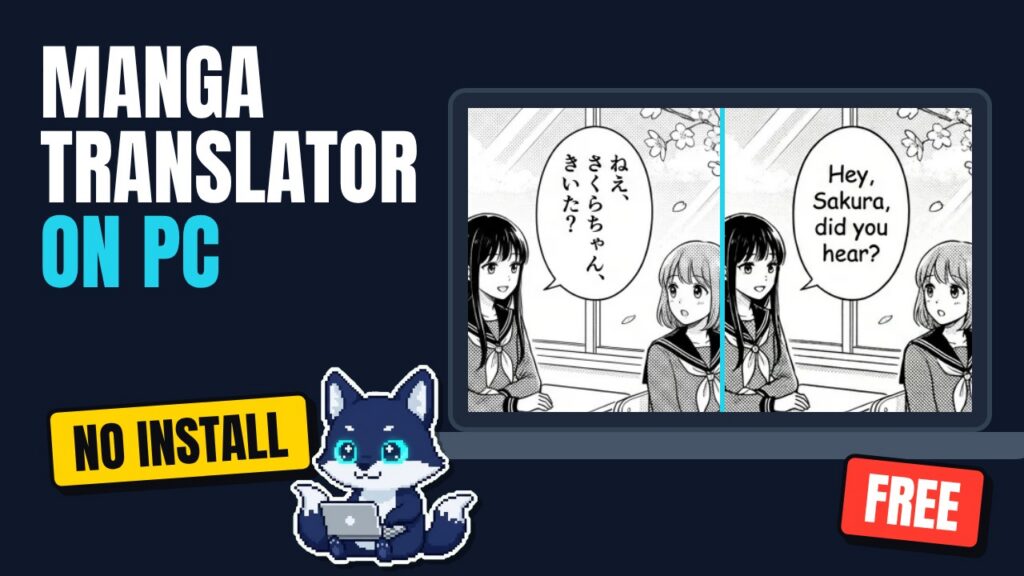
Most “manga translator for PC” results ask you to download an app, install Python, or own a powerful graphics card. You don’t need any of that. This guide shows how to translate manga, manhwa and manhua on your PC straight from the browser, on Windows, Mac or Linux, with no install and no GPU.
Watch the full PC guide
This short video walks through everything below: opening the translator, uploading a chapter, the quality check, the editor, the Text tab, downloads and the API.
Why a browser manga translator beats a desktop app
There are two ways to translate manga on a computer. You can install a desktop program and run the AI models on your own machine, or you can use an online translator where the AI runs in the cloud. Here’s how they compare:
| Desktop / local tools | Browser (MangaGloss) | |
|---|---|---|
| Install | App, Python, models, often several GB | Nothing, just open the site |
| Graphics card | A strong GPU is usually needed for good speed | Not needed, AI runs on cloud GPUs |
| Works on | Usually one operating system | Windows, Mac, Linux, Chromebook, phone |
| Updates | You update models yourself | Always the latest version |
| Typesetting and editing | Varies, often manual | Automatic typesetting, quality check and built-in editor |
Local tools make sense if you want full control and have the hardware. For most readers who just want to read a raw chapter tonight, a browser translator is faster to start and works on any PC, including an old laptop.
What you need
- Any computer with a modern browser (Chrome, Edge, Firefox or Safari).
- The raw pages of the chapter as PNG, JPG or WebP images.
- An internet connection. That’s it.
How to translate manga on PC (no install)
1. Open the translator
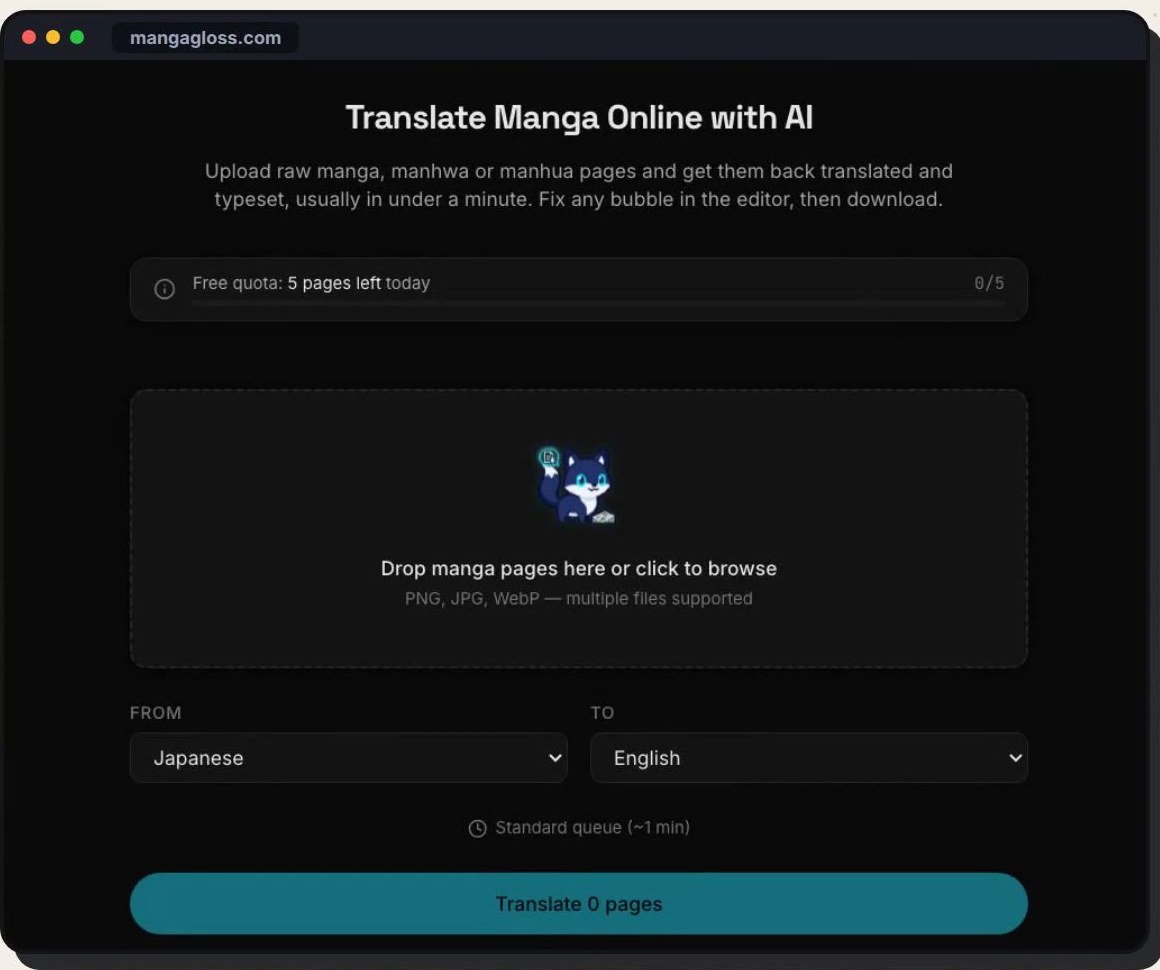
Go to mangagloss.com/translate. There’s nothing to download and you can try your first pages without creating an account.
2. Drop your pages
Drag the chapter’s pages from a folder on your PC into the upload area, or click to browse. You can drop a whole chapter at once. Pages are sorted by file name, so numbered files (001, 002, 003…) stay in order.
3. Pick the languages
Choose the source language (Japanese, Korean, or Chinese in Simplified or Traditional characters) and the language you want to read, such as English, Spanish, French or Portuguese.
4. Let the cloud do the heavy work
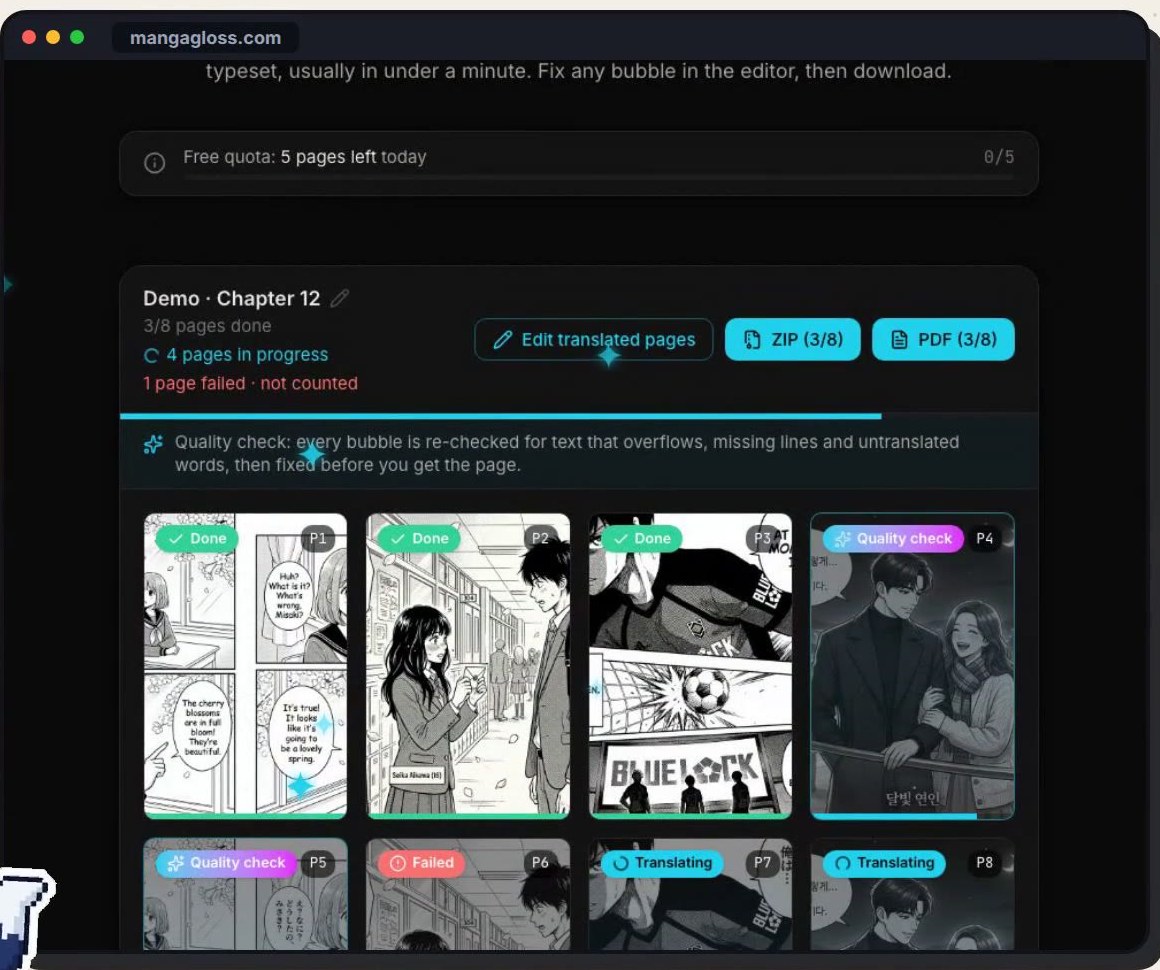
Text detection, OCR, translation and typesetting all run on GPUs in the cloud, so your PC’s speed doesn’t matter. Each page shows its own status while it works, and you can open finished pages while the rest of the chapter is still translating.
5. The quality check
Before a page is marked done, MangaGloss re-reads every bubble and fixes text that overflows the bubble, lines that were missed, and words left untranslated.
6. Edit any line
Open the editor to see every text region next to the page, with the original text above the translation. Change any line, adjust the size, and re-render. On a PC this is the comfortable way to clean up a chapter, with a big screen and a real keyboard.
7. Copy the whole script from the Text tab
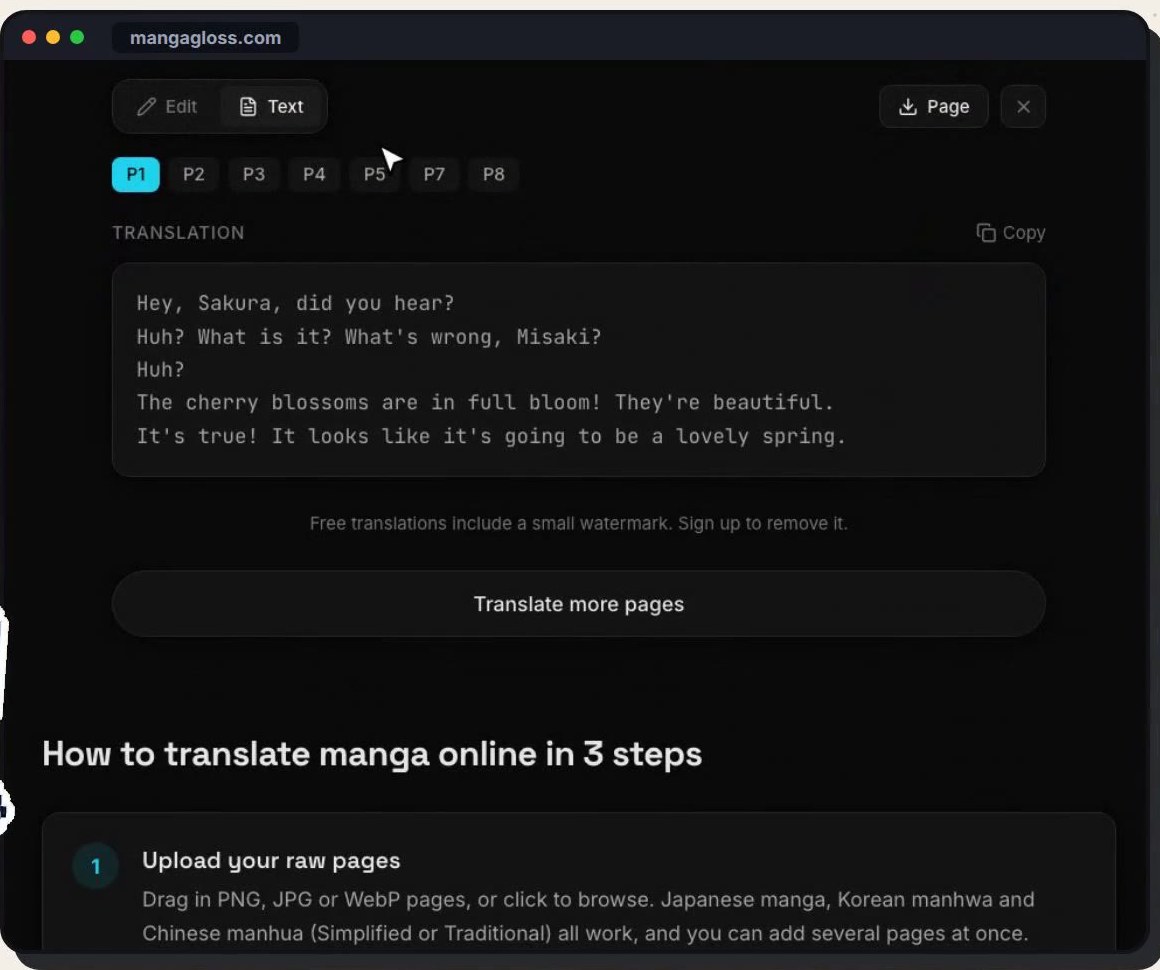
Need the translation as text, for notes, subtitles, language study or your own typesetting? The Text tab shows the full translation of every page, ready to copy.
8. Download as ZIP or PDF
Save the chapter to your PC as a ZIP of numbered pages or as one PDF. File names include the chapter name and page number, so they stay organized in your manga folder.
Reading your translated chapter on PC
Once the chapter is downloaded, you have two easy ways to read it on a computer:
- PDF: open it in your browser or any PDF viewer. Set the view to “single page” or “two-page spread” for a book-like layout. This is the simplest option and also works well on a tablet.
- ZIP of pages: most comic reader apps on Windows, Mac and Linux (for example YACReader or CDisplayEx) open a ZIP of images directly. Some readers prefer the .cbz extension: just rename chapter.zip to chapter.cbz, it’s the same format.
Because the files are named with the chapter name and page number, you can keep a whole series in one folder and your reader will sort the chapters and pages correctly.
Tips for the best results on PC
- Grab the full-size raw. On a PC it’s easy to save the original image instead of a compressed preview. Bigger, sharper pages mean better text detection and fewer wrong words.
- Translate one chapter per task. Keeping each chapter in its own task makes the downloads clean and the context consistent from page to page.
- Use the big screen for editing. The editor shows the page and the list of text regions side by side. On a wide monitor you can read the original and the translation at the same time and fix a chapter in a few minutes.
- Keep a list of names. If a character’s name comes out in two spellings, pick one and fix the other in the editor. Doing this on the first chapter saves time on every chapter after it.
- Copy the script for study. If you’re learning Japanese, Korean or Chinese, the Text tab gives you the translation line by line, which is a great way to compare it with the original bubbles.
Who is a browser manga translator for?
- Readers who want to read raw chapters the day they come out, without waiting for a fan translation.
- Language learners who want to compare the original and the translation side by side (see MangaGloss for language learners).
- Scanlators and translators who want a fast first draft and clean typesetting to edit, instead of starting from a blank page (see MangaGloss for scanlators).
- Creators and publishers who want to test how their comic reads in another language (see MangaGloss for creators).
Extras for PC users
The site speaks 9 languages
The MangaGloss interface is available in English, Spanish, Portuguese, Indonesian, French, German, Turkish, Russian and Arabic.
A REST API for automation
If you’d rather script it, there’s a REST API with ready-to-copy examples on the developers page. It’s handy for batch jobs or plugging translation into your own tools.
Troubleshooting
- Text looks blurry or wrong: the source pages are probably too small. Try a higher-resolution copy of the raw.
- Pages are out of order: rename the files with leading zeros (001, 002…) before uploading.
- A page failed: failed pages aren’t counted against your pages. Re-upload it, ideally at a higher resolution.
- A name is translated differently on two pages: fix it in the editor, it takes a few seconds per bubble.
Frequently asked questions
Is there a manga translator app for Windows?
You don’t need one. MangaGloss runs in any browser on Windows 10 and 11, and you can pin it to your taskbar like an app.
Does it work on Mac and Linux?
Yes. Because it runs in the browser, it works the same on macOS, Linux and ChromeOS.
Do I need a graphics card?
No. All the AI work runs on cloud GPUs, so even a basic laptop works.
Is it free?
You can translate your first pages free without signing up. Current limits are on the pricing page.
Can I translate a whole chapter at once?
Yes, drop every page together. The full step-by-step is in how to translate a whole manga chapter with AI.
Start translating on your PC
Open MangaGloss in your browser, drop a raw chapter and read it in your language in about a minute. No install, no graphics card.